
 GitHub个人主页美化教程
# 200.GitHub个人主页美化教程
Guthub 个人主页 (官方称呼是 profile)可以展示很多有用的信息,例如添加一个首页被访问次数的计数器,一个被 Star 与 Commit 的概览信息,以及各种技能标签,设备标签等,还可以利用 wakatime 显示你最近编码各类语言的使用时长,以及你最近 Steam 游戏游玩排行榜。
# 默认主页
默认情况下,GitHub 个人主页会显示其仓库信息、提交信息,例如 Linux 之父 Linus 的 GitHub 主页 (opens new window) 长这样:

但是,这个主页是可以定制的。GitHub 支持这个功能,并且有相关的文档说明:Setting up and managing your GitHub profile - GitHub Docs (opens new window)。
例如有的长这样:Luo Lei (opens new window)

这样:mqyqingfeng (冴羽) (opens new window)

这就远比默认主页好看不少,令人印象深刻。
# 原理
自定义主页很简单。我们首先在 GitHub 上新建一个仓库,仓库名和自己 Github 用户名相同,然后添加一个 README.md自述文件,在该文件里添加信息即可。
例如,我创建的仓库 (opens new window):

可以看到右上角有个提示:
Peter-JXL/Peter-JXL is a special repository. 这是一个特殊的仓库。
Its
README.md will appear on your public profile. 它的README.md 会出现在你的首页中。
# 侧边栏
在讲解如何定制之前,我们先关注下左侧也有个人信息展示:

这个可以直接在个人首页上,点击左侧的 Edit profile 进行编辑:

可以修改名字、签名(Bio)、公司、地点、邮箱、网站.......... 按需修改即可。

接下来讲讲如何定制右侧。
# 新建仓库
新建一个同名仓库,并添加一个自述文件,确认:

GitHub 默认为此文件添加了一行字:

此时我们的首页也会跟着变:

# 如何定制
接下来,你就可以通过修改 README.md 来定制主页了。这是个 Markdown文件,扩展性很高,并且全面支持 emoji。
此外,人的创造力有限,如何短时间内拥有一个酷炫的个人主页呢?
答案是 ctrl+c,ctrl+v。看到好看的模板,拿过来用 拿过来模仿下。
此外 GitHub 上也有不少人收集优秀案例:
- awesome-github-profile-readme (opens new window)
- awesome-github-profiles (opens new window)
- beautify-github-profile (opens new window)
接下来讲讲一些常见的信息展示。
# GitHub 统计卡片
官网:github-readme-stats (opens new window)(文档支持多语言)
效果:

使用方法很简单,将这行代码复制到你的 markdown 文件中,更改 ?username= 的值为你的 GitHub 用户名:

这个是默认样式,很简陋,可以配置显示图标、主题样式等,具体看文档。
# GitHub 使用语言统计
官网:github-readme-stats (opens new window)
效果:

使用方法很简单,将这行代码复制到你的 markdown 文件中,更改 ?username= 的值为你的 GitHub 用户名:
同理,这个也可以配置主题和布局(参考文档)。
# Metrics 统计信息
会展示 GitHub 上的一些统计信息,效果:

我们可以去官网演示下:输入你的 GitHub 用户名,然后点击按钮:

PS:这个项目也是开源在 GitHub 上的:lowlighter/metrics (opens new window),并且还有其他的功能(后续会讲到)。
就能看到效果如下:

这个配置起来稍微复杂一点点。根据官网文档 (opens new window),使用该功能的方式之一是使用 GitHub Action。
首先我们得创建一个 GitHub personal token,位置:右上角个人头像 → settings → Developer settings → Personal access tokens:

接下来就是勾选 scopes(可以理解为权限,这个就根据不同插件的要求来勾选了,具体得看文档):

然后会生成 token,只展示一次,注意好好保管:

然后去到个人项目里的 settings 页面,将刚刚生成的 token 作为一个密钥(先创建一个环境,名字为 production;然后再创建一个名字为 METRICS_TOKEN 的 secret,值为刚刚生成的 token):

第三步,生成一个 Action,其实 metrics 已经帮我们生成了一个 Action:

内容如下(建议自行核对下,例如我这边在第 9 行加了个 environment 变量):
name: Metrics
on:
  # Schedule updates (each hour)
  schedule: [{cron: "0 * * * *"}]
  # Lines below let you run workflow manually and on each commit
  workflow_dispatch:
  push: {branches: ["master", "main"]}
jobs:
  github-metrics:
    runs-on: ubuntu-latest
    environment:
      name: production
    permissions:
      contents: write
    steps:
      - uses: lowlighter/metrics@latest
        with:
          # Your GitHub token
          # The following scopes are required:
          #  - public_access (default scope)
          # The following additional scopes may be required:
          #  - read:org      (for organization related metrics)
          #  - read:user     (for user related data)
          #  - read:packages (for some packages related data)
          #  - repo          (optional, if you want to include private repositories)
          token: ${{ secrets.METRICS_TOKEN }}

          # Options
          user: Peter-JXL
          template: classic
          base: header, activity, community, repositories, metadata
          config_timezone: Asia/Shanghai
2
3
4
5
6
7
8
9
10
11
12
13
14
15
16
17
18
19
20
21
22
23
24
25
26
27
28
29
30
31
32
等我们提交后,就会自动生成一个 svg 文件:

然后我们在自述文件里添加这个图片,例如 Markdown 格式如下(其实也可以用 HTML 格式,更灵活):

此时的首页效果:

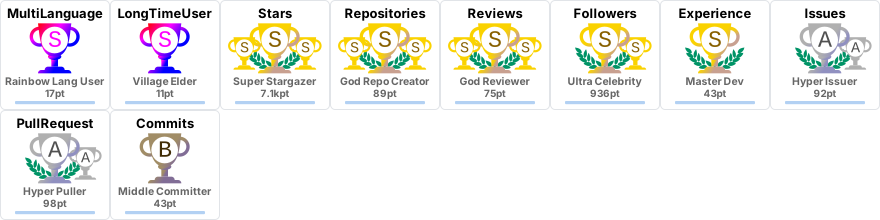
# GitHub 资料奖杯
效果:

使用方法:将这行代码复制到你的 markdown 文件中,更改 ?username= 的值为你的 GitHub 用户名:
[](https://github.com/ryo-ma/github-profile-trophy)
同理,这个也可以配置主题。
# GitHub 徽章
为你的开源项目生成高质量小徽章图标,直接复制链接使用。
官网:Shields.io (opens new window)
效果:

示例代码:
<img src="https://img.shields.io/badge/-HTML5-E34F26?style=flat-square&logo=html5&logoColor=white" />
<img src="https://img.shields.io/badge/-CSS3-1572B6?style=flat-square&logo=css3" />
<img src="https://img.shields.io/badge/-JavaScript-oringe?style=flat-square&logo=javascript" />
2
3
# GitHub 访客徽章
这个徽章会实时改变,记录此页面被访问的次数。
官网:Visitor Badge (opens new window)
效果:
使用方法:复制代码到 Markdown 并替换 page_id 的值为用户名

可以配置颜色,参数为:left_color,right_color
# GitHub 活动统计图
动态生成的活动图,用于显示您过去 31 天的 GitHub 活动。
官网:github-readme-activity-graph (opens new window)
效果:

使用方法:复制代码到 Markdown 并替换 username 的值为用户名

可以配置主题。
# GitHub 连续打卡
在 README 中展示您连续提交代码的次数。
官网:github-readme-streak-stats: (opens new window)
效果:

使用方法:复制代码到 Markdown 并替换 username 的值为用户名

同理,支持主题、样式等配置。
# 社交统计
在 README 中展示你在一些流行的网站的数据,例如知乎,GitHub,B 站,LeetCode,掘金,CSDN,牛客。
官网:stats-card (opens new window)
效果:

使用方法:复制代码到 Markdown 并替换 username 的值为那个网站的用户名
https://stats.justsong.cn/api/leetcode?username=quanpeng&cn=true
# 打字特效
让内容通过打字的特效来展示,炫酷。
官网:readme-typing-svg (opens new window)
效果:

使用方法:复制代码到 Markdown 并替换 ?lines= 的值为你想要的内容,字与字之间用分号隔开

2
更多配置参考官网文档。还可以去 demo (opens new window) 站里自行调试:
# 贪吃蛇
默认的提交信息是这样子的:

而我们可以将其变成一个动画:一只贪吃蛇挨个吃掉图里的绿点:

使用起来也不难,先新建一个 workflow 文件(名字随意),不需要任何改动,然后提交:
name: generate animation

on:
  # run automatically every 2 hours
  schedule:
    - cron: "0 */2 * * *"

  # allows to manually run the job at any time
  workflow_dispatch:

  # run on every push on the master branch
  push:
    branches:
    - master


jobs:
  generate:
    permissions:
      contents: write
    runs-on: ubuntu-latest
    timeout-minutes: 5

    steps:
      # generates a snake game from a github user (<github_user_name>) contributions graph, output a svg animation at <svg_out_path>
      - name: generate github-contribution-grid-snake.svg
        uses: Platane/snk/svg-only@v3
        with:
          github_user_name: ${{ github.repository_owner }}
          outputs: |
            dist/github-contribution-grid-snake.svg
            dist/github-contribution-grid-snake-dark.svg?palette=github-dark


      # push the content of <build_dir> to a branch
      # the content will be available at https://raw.githubusercontent.com/<github_user>/<repository>/<target_branch>/<file> , or as github page
      - name: push github-contribution-grid-snake.svg to the output branch
        uses: crazy-max/ghaction-github-pages@v3.1.0
        with:
          target_branch: output
          build_dir: dist
        env:
          GITHUB_TOKEN: ${{ secrets.GITHUB_TOKEN }}
2
3
4
5
6
7
8
9
10
11
12
13
14
15
16
17
18
19
20
21
22
23
24
25
26
27
28
29
30
31
32
33
34
35
36
37
38
39
40
41
42
43
44
将下列代码复制到 Markdown 内,将用户名部分替换成你自己的,并提交。
这段代码的目的是:加载贪吃蛇动画,且贪吃蛇的暗亮风格与你的 Github 的暗亮风格进行自动适配。
<picture>
  <source media="(prefers-color-scheme: dark)" srcset="https://raw.githubusercontent.com/Peter-JXL/Peter-JXL/output/github-contribution-grid-snake-dark.svg">
  <source media="(prefers-color-scheme: light)" srcset="https://raw.githubusercontent.com/Peter-JXL/Peter-JXL/output/github-contribution-grid-snake.svg">
  <img alt="github contribution grid snake animation" src="https://raw.githubusercontent.com/Peter-JXL/Peter-JXL/output/github-contribution-grid-snake.svg">
</picture>
2
3
4
5
之前我们设置的是每隔2小时更新一次,我们可以先手动跑一次。点击 generate animation,点击 Run workflow:

稍等片刻,显示运行成功,再次回到仓库主页就会看到贪吃蛇动画已被加载:

# 博客文章同步
如果你有博客网站,且网站带有 RSS 功能,就可以配置此功能,它能在你的 GitHub 首页上显示最近更新的博客
原理:利用 blog-post-workflow (opens new window) 在自述文件上展示最近几篇博客文章。
效果:

使用起来也很简单。首先创建一个 workflow(例如 blog-post-workflow.yml ),需要改动最后一行的 feed_list 的内容为你自己网站的 RSS 链接。
name: Latest blog post workflow
on:
  schedule: # Run workflow automatically
    - cron: '0 */2 * * *' # Runs every hour, on the hour
  workflow_dispatch: # Run workflow manually (without waiting for the cron to be called), through the GitHub Actions Workflow page directly
permissions:
  contents: write # To write the generated contents to the readme

jobs:
  update-readme-with-blog:
    name: Update this repo's README with latest blog posts
    runs-on: ubuntu-latest
    steps:
      - name: Checkout
        uses: actions/checkout@v3
      - name: Pull in blog's posts
        uses: gautamkrishnar/blog-post-workflow@v1
        with:
          feed_list: "https://www.peterjxl.com/rss.xml"
2
3
4
5
6
7
8
9
10
11
12
13
14
15
16
17
18
19
更多构建参数请参考🔗这里 (opens new window),包括显示文章数量、显示主题等等。
然后在自述文件输入这些内容,程序会自动抓取文章标题、链接等并替换这两个注释:
📕  **Latest Blog Posts**
<!-- BLOG-POST-LIST:START -->
<!-- BLOG-POST-LIST:END -->
2
3
同理,此时是看不到文章列表的,我们得先手工运行一次 action:

# GitHub 3D统计
使用 3D 图来展示信息。
官网:github-profile-3d-contrib (opens new window)
效果:

使用方法和之前的类似。
首先创建文件 .github/workflows/profile-3d.yml,内容如下:
name: GitHub-Profile-3D-Contrib

on:
  schedule: # 03:00 JST == 18:00 UTC
    - cron: "0 18 * * *"
  workflow_dispatch:

jobs:
  build:
    runs-on: ubuntu-latest
    name: generate-github-profile-3d-contrib
    steps:
      - uses: actions/checkout@v3
      - uses: yoshi389111/github-profile-3d-contrib@0.7.1
        env:
          GITHUB_TOKEN: ${{ secrets.GITHUB_TOKEN }}
          USERNAME: ${{ github.repository_owner }}
      - name: Commit & Push
        run: |
          git config user.name github-actions
          git config user.email github-actions@github.com
          git add -A .
          git commit -m "generated"
          git push
2
3
4
5
6
7
8
9
10
11
12
13
14
15
16
17
18
19
20
21
22
23
24
然后手动执行一次 action:Actions -> GitHub-Profile-3D-Contrib -> Run workflow
然后会生成这些文件(带路径,各种主题的都有):
profile-3d-contrib/profile-green-animate.svgprofile-3d-contrib/profile-green.svgprofile-3d-contrib/profile-season-animate.svgprofile-3d-contrib/profile-season.svgprofile-3d-contrib/profile-south-season-animate.svgprofile-3d-contrib/profile-south-season.svgprofile-3d-contrib/profile-night-view.svgprofile-3d-contrib/profile-night-green.svgprofile-3d-contrib/profile-night-rainbow.svgprofile-3d-contrib/profile-gitblock.svg
最后在 Markdown 里添加即可。
PS,如果遇到了这样的报错:
remote: Permission to mthsBelloni/mthsBelloni.git denied to github-actions[bot].
fatal: unable to access 'https://github.com/Peter-JXL/Peter-JXL/': The requested URL returned error: 403
Error: Process completed with exit code 128.
2
3
大概率是因为没有配置 actions 的写权限,导致无法写入 svg 文件。解决办法:加上权限

# Profile 编辑器
这个项目是一个是一个可视化 profile 生成工具,使用者无需学习 Markdown 语法,仅需要在对应窗口中输入或者选择相应的内容,工具会自动生成 Markdown 脚本。脚本编辑完成以后,直接复制粘贴到自己的 Github 即可。
官网:GitHub Profile README Generator (opens new window)
效果:

# 最后
本文仅仅列出一些常见的功能,感兴趣的同学可以自行搜索更多功能,甚至自定义。
这是我的 GitHub 主页,大家可以抄抄作业(如果能点个 star 就更好了):https://github.com/Peter-JXL (opens new window)
特别注意:由于 GFW 的原因,可能需要科学上网后才能看到一些内容。
最后,祝你玩得开心!
# 参考
Github 首页美化教程(一):打造个性化的GitHub首页 - 知乎 (opens new window)
